
How to Deactivate your Facebook account
Whether you’re looking to take a break from Facebook or want to permanently remove your account, this guide is here to help. Learn how to temporarily deactivate your account or delete it entirely with these step-by-step instructions.
Before proceeding, it’s important to note the difference: Deactivating Facebook pauses your account activity temporarily, while deleting Facebook removes your profile permanently.
Deactivating your Facebook account from a browser
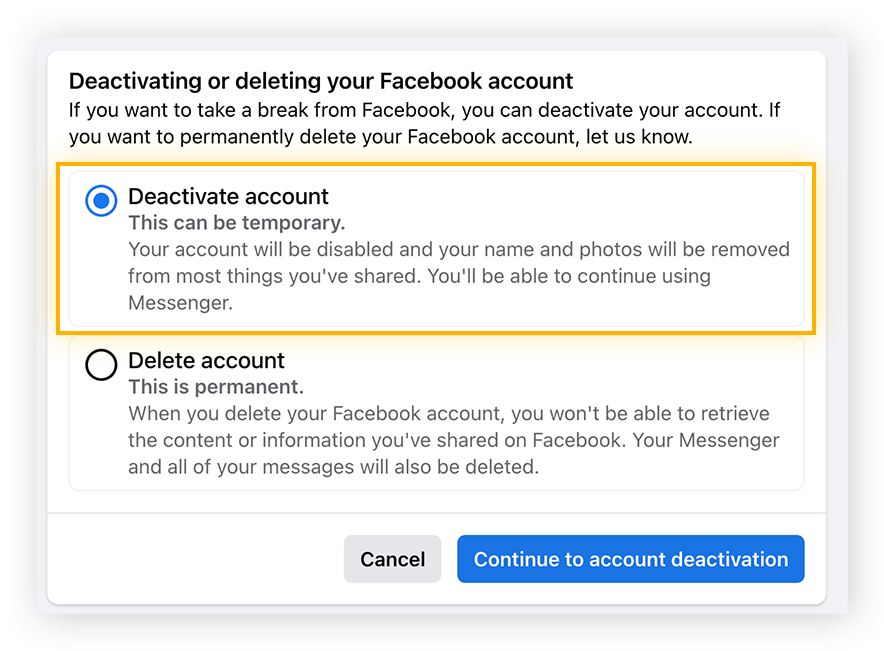
The quickest way to deactivate a Facebook page or suspend an account is by logging into Facebook and navigating to the privacy settings for deleting or deactivating a Facebook account. From there, select the “Deactivate Account” option to temporarily disable your account activity.

You will need to re-enter your password to confirm the temporary deactivation. Once confirmed, you can reactivate your Facebook account at any time.
Alternatively, you can deactivate your Facebook account on your computer or browser by following this step-by-step guide.
- Sign into Facebook.
- Click your profile picture in the top-right corner and select Settings & privacy.

- Click Settings.

- Click Privacy in the left panel, then click Your Facebook information.

- Scroll to the last option and click Deactivation and deletion.

- Confirm your choice, then click Continue to account deactivation.
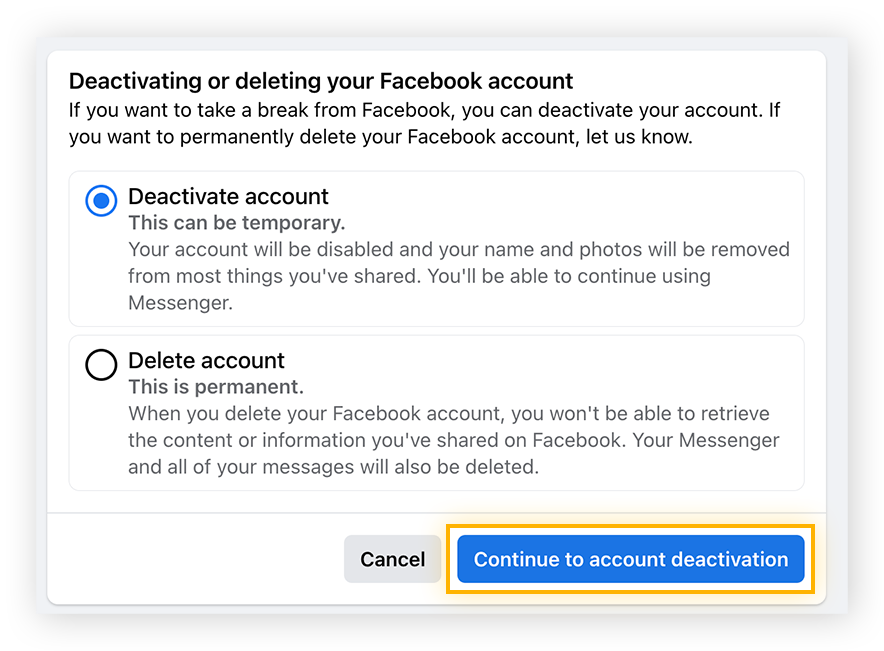
- Re-enter your Facebook password and click Continue to confirm deactivation.

How to Deactivate your Facebook account from the iPhone app
Deactivating your Facebook account using the iPhone app has the same effect as doing so on a desktop or browser.
Follow these steps for the Deactivation.
- Open the Facebook app on your iPhone or iPad.
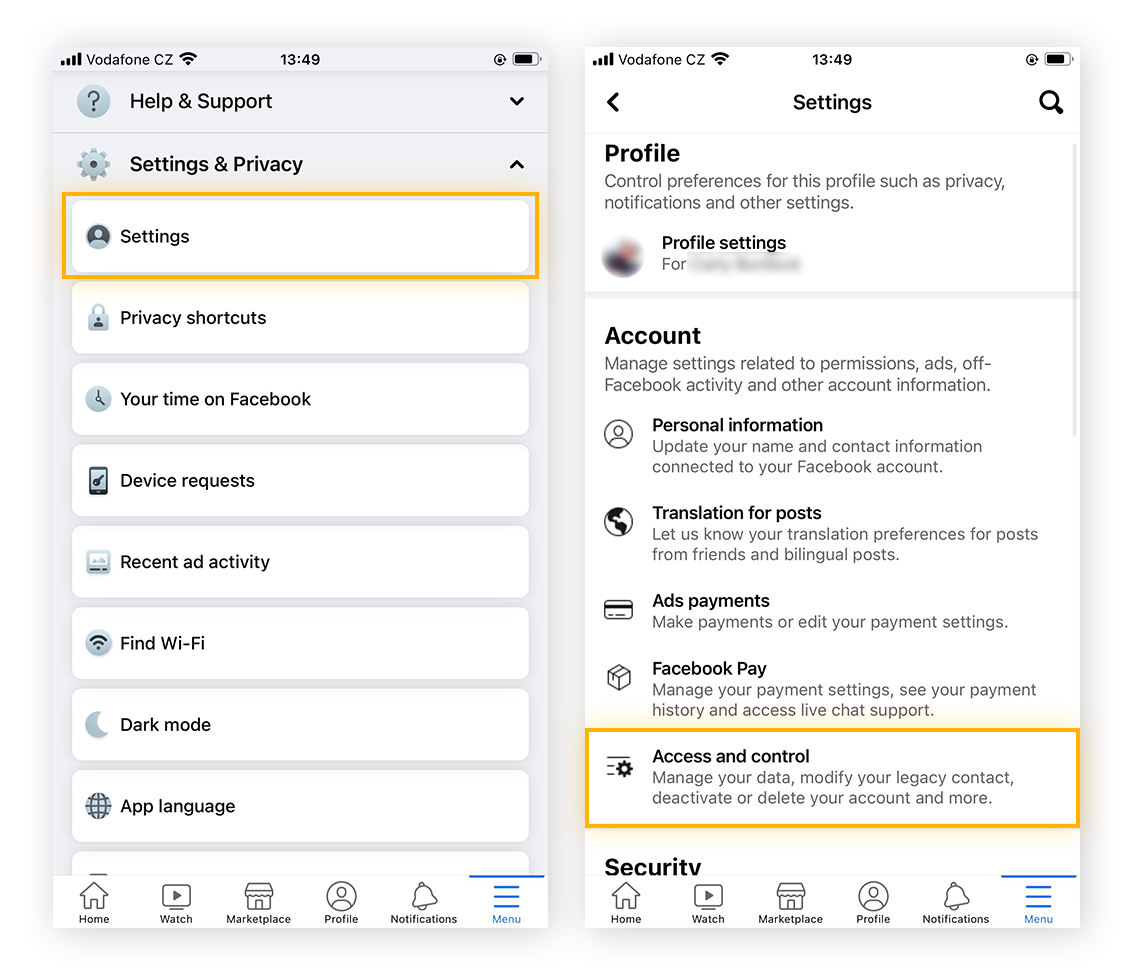
- Tap the menu (three-lines), then tap Settings & Privacy.

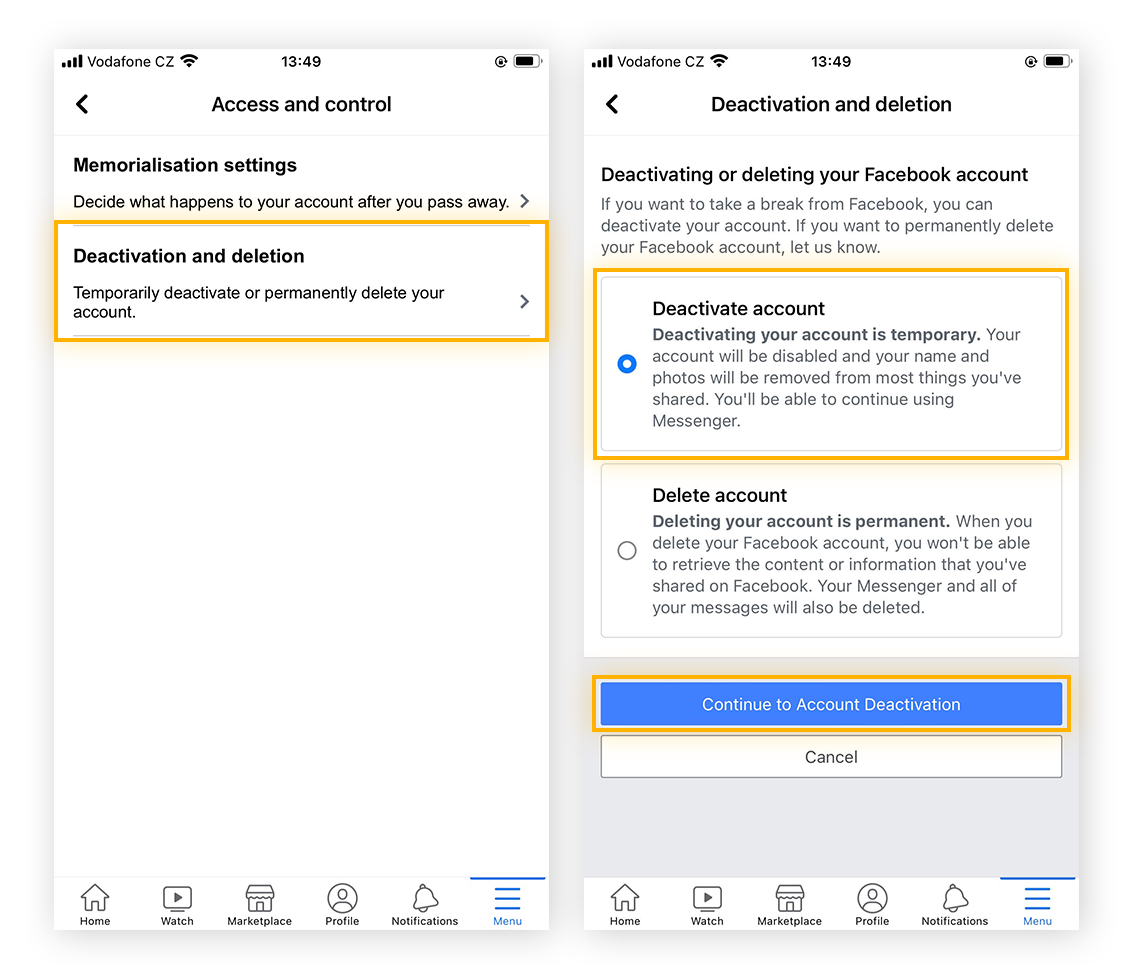
- Choose Settings > Access and control.
- Tap Deactivation and deletion > Deactivate account. Re-enter your password to confirm deactivation.
How to deactivate your Facebook account from the Android app
To suspend your Facebook account on Android, go straight to the Facebook mobile app. It takes only a few steps to pause Facebook.
1.Open the Facebook app on your Android phone.
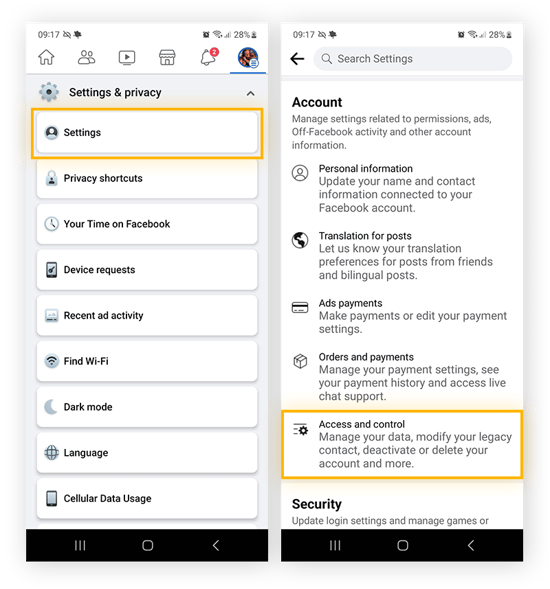
2.Tap your profile picture, then select Settings & privacy.

- Tap Settings > Access and control.
- Select Deactivation and deletion > Deactivate account. Re-enter your password to confirm deactivation.

Deleting your Facebook account
Your online activity can give advertisers a lot of information and increase the risk of data leaks. If you want to delete your Facebook account or improve your online security, these steps can guide you.
How to delete your Facebook account from a browser
Here’s how to delete Facebook account if you’re using a browser on a computer:
- Open Facebook and log in.
- Click your profile picture in the top-right corner, then select Settings & privacy.
- Select Settings > Privacy > Your Facebook information.
- Click Deactivation and deletion.
- Confirm by selecting Delete account.
- Click Continue to account deletion and re-enter your password.
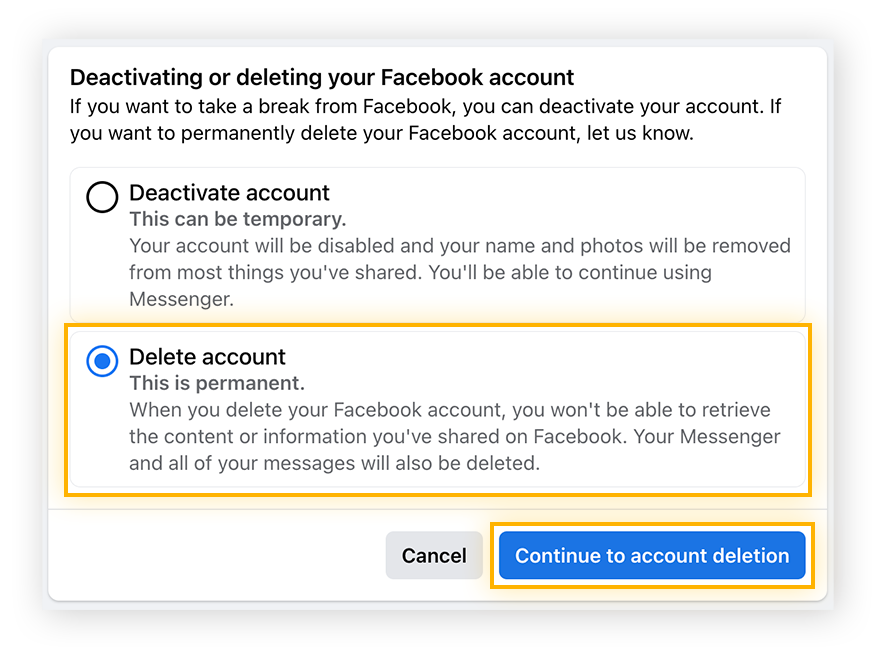
Here are the steps to delete your Facebook account using a browser on a PC or Mac. Keep in mind, once you delete your Facebook account, you won’t be able to log into other websites with Facebook (which could be a positive change).
How to delete your Facebook account from the iPhone app
To delete your Facebook account on an iPhone, follow these steps. The process is similar to deactivating your account, with the only difference being the final step, where you choose “delete” instead of “deactivate”.
Here’s how to delete your Facebook account on an iPhone:
- Open the Facebook app on your iPhone.
- Tap the menu (three lines), and select Settings & Privacy.
- Tap Settings > Access and control.
- Select Deactivation and deletion and choose Delete account. Re-enter your password to confirm.
How to delete your Facebook account from the Android app
ou can delete your Facebook account directly from your mobile device in just a few simple steps. However, deleting the Facebook app does not delete your account. You need to delete your Facebook account first, and then you can remove the app.
Here’s how to delete your Facebook account using the Android app:
- Open the Facebook app on Android.
- Tap the menu (three lines) and select Settings & Privacy.
- Tap Settings > Access and control.
- Tap Deactivation and deletion, then select Delete account.
What’s the difference between deactivating and deleting a Facebook account?
Deactivating a Facebook account means temporarily disabling it, while deleting it means permanently removing it. You can reactivate a deactivated account, but once you delete your account, your data is permanently erased and cannot be recovered.
Whether you’re tired of fake news, annoyed by ad tracking, or just want to stop oversharing, there are pros and cons to both temporarily deactivating and permanently deleting your Facebook account.
Pros of Deactivating Facebook
- You can keep using Facebook Messenger.
- You can reactivate your account anytime without losing any data.
- It temporarily hides your photos, friends, and posts from others.
Cons of Deactivating Facebook
- Your personal data is not deleted.
- Oculus products become inaccessible until you reactivate your account.
- Reactivating your account brings the risk of facing Facebook scams again.
Pros of Deleting Facebook
- You’ll no longer have to worry about data leaks on Facebook.
- No concern about Facebook listening to your private conversations.
- You gain more control over your personal data.
- All data tied to your inactive account is permanently deleted.
Cons of Deleting Facebook
- You can’t change your mind; rejoining requires creating a completely new profile.
- You may lose important photos and videos if they’re not backed up before deleting your account permanently.
Can you deactivate Facebook Account and keep Messenger?
Leave a Reply