
Do you spend hours staring at a bright white screen while working in Google Docs? If so, you’re not alone. Many users experience eye strain, headaches, and even disrupted sleep from prolonged exposure to bright displays, especially in low-light environments. Fortunately, Google Docs dark mode offers a comfortable and stylish solution.
While Google Docs doesn’t have an official, built-in dark mode feature that works universally across all devices, there are several effective ways to achieve a soothing dark theme. This article will show you how to enable dark mode for Google Docs on your desktop and mobile devices, helping you work more comfortably and productively.
Why Use Dark Mode for Google Docs?
Before we dive into the “how-to,” let’s quickly look at the benefits of using dark mode:
-
Reduced Eye Strain: The primary benefit is less strain on your eyes, especially during long working sessions or in dimly lit rooms.
-
Improved Focus: A darker interface can reduce glare and distractions, helping you concentrate better on your writing.
-
Battery Savings: On devices with OLED or AMOLED screens (like many smartphones and some laptops), dark pixels consume less power, extending battery life.
-
Aesthetic Preference: Let’s face it – dark mode just looks cool! It offers a sleek, modern aesthetic that many users prefer.
Method 1: Google Docs Dark Mode on Desktop (Using a Browser Extension)
For desktop users, the most reliable and customizable way to get Google Docs in dark mode is by using a browser extension. We recommend “Dark Reader,” a popular and highly-rated extension available for Chrome, Firefox, Safari, Edge, and other Chromium-based browsers.
Step-by-Step Guide with Dark Reader (Chrome Example):
-
Open your Google Chrome browser.
-
Go to the Chrome Web Store. You can search for “Chrome Web Store” on Google or navigate directly to
chrome.google.com/webstore. -
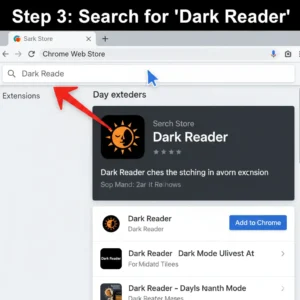
Search for “Dark Reader” in the search bar on the left.
-
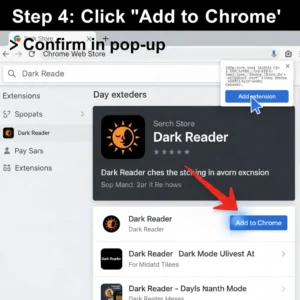
Click “Add to Chrome” next to the Dark Reader extension. Confirm by clicking “Add extension” in the pop-up window.
-
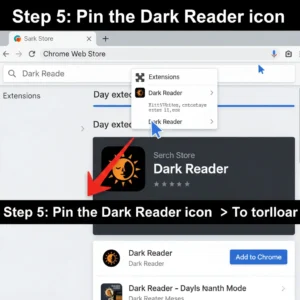
Pin the Dark Reader icon to your browser toolbar for easy access. Click the puzzle piece icon, then click the pin next to Dark Reader.
-
Navigate to Google Docs (
docs.google.com) and open a document. Dark Reader should automatically apply a dark theme.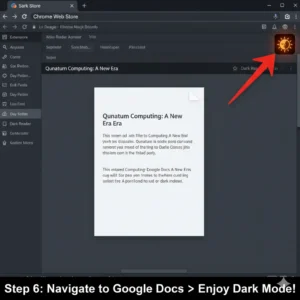
-
Customize your dark mode by clicking the Dark Reader icon. You can adjust brightness, contrast, sepia, and even switch it off for specific websites if needed.
Method 2: Google Docs Dark Mode on Mobile (Android & iOS)
Good news for mobile users! The Google Docs app (and other Google Workspace apps) has a built-in dark theme feature that respects your device’s system-wide dark mode settings.
For Android Users:
-
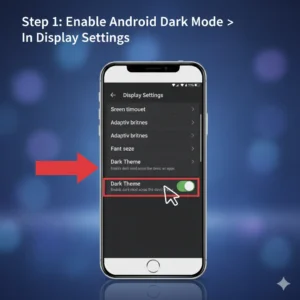
Ensure your Android device has system-wide Dark Mode enabled. You can usually find this in your device’s Display settings.
Leave a Reply